Logged in as Client User, you can create trips.
Select the Trip Widget to display the sum of Total Trips, Upcoming Trips, Unassigned Trips, Booked Trips, Completed Trips and Cancelled Trips.
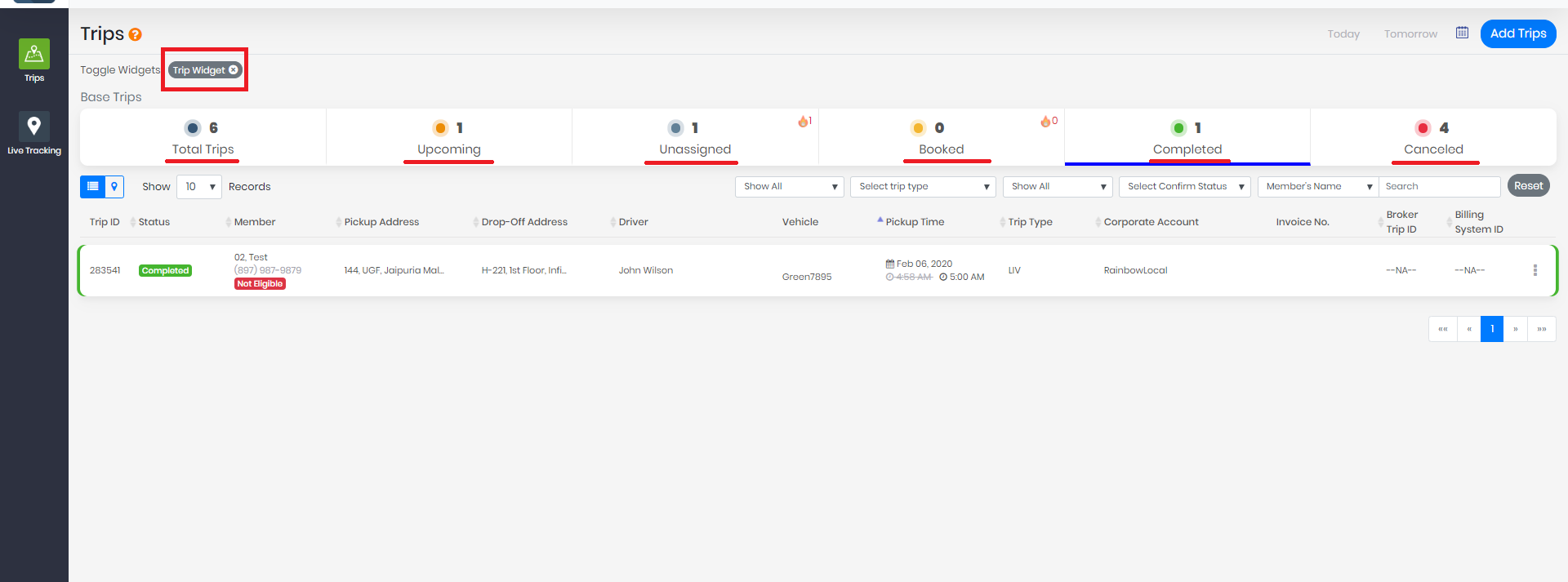
You have the ability to view this information over whatever date range you wish by using the calendar in the upper right corner of the screen.
The row is the stats about Rides Distribution –
Total Trips - Total number of Trips in the system.
Unassigned - Total number of Trips that are still not assigned to any Driver/Broadcast trips.
Booked - Total number of Trips that are assigned and are waiting to be executed.
Completed - Total number of trips which have been executed by Drivers.
Canceled - Total number of trips that are marked Canceled either by Dispatcher/Base Admin or a Driver.
**Note: The row stats will change with the change in Date Time or other filters.
By default, the Will Call Trips will show at the end of the Trip list.
When a user clicks on Urgent check box unassigned urgent trips and booked urgent Trips will show in Total Trips tab
Unassigned and Booked Trips whose time has passed and no action is taken will be marked Urgent.
Broadcast Trips that are not accepted by any of the Driver will be marked Urgent.
Will call trips will never be marked as Urgent.
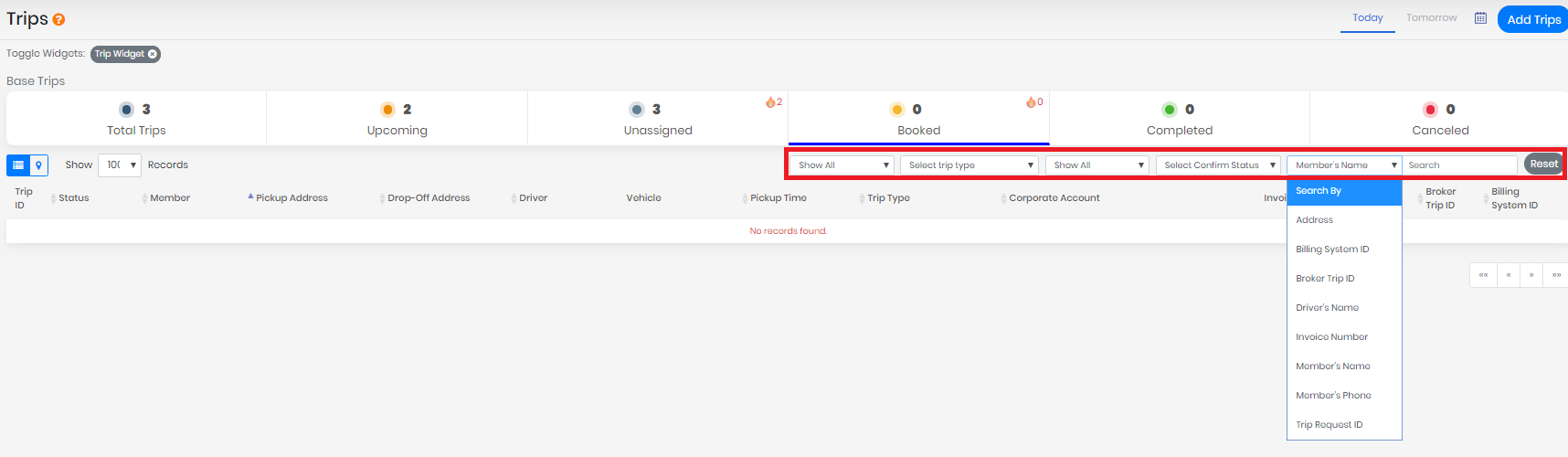
You can filter Trips by urgent-non urgent status, trip type, eligibility, and confirmed status. You can also search for trips by address, billing system ID, Broker ID, Invoice number, passenger name, passenger phone number, driver name and Trip request ID:
Users can reset the filters by clicking on the reset button.
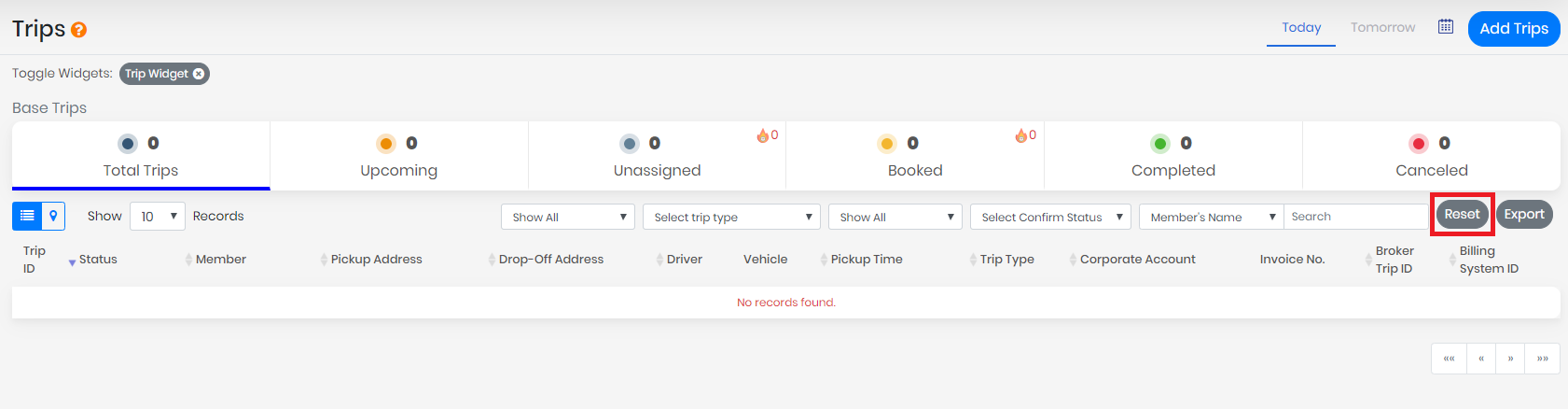
By clicking on the export button, Users will get downloaded file in the CSV format report in the system which will show all the details of the trip:
| Medicaid ID | Member First Name | Member Last Name | Trip Id | Status | Pickup Location Phone Number | Destination Location Phone Number | Pickup Address | Destination Address |
| Actual Pickup Time | Destination Time | Actual Destination Time | Will Call | Will Call Confirmed | Member Eligible | Confirm By Member | Duration | Member Phone | Member Email |
| Passenger Count | Driver Phone | Driver Name | Vehicle Registration Number | Account Name | Dispatch Base | Notes | Driver Instructions | Trip Status | Luggage Count |
| Vehicle Type | Trip Type | Invoice No. | Broker Trip ID | Billing System ID | Completed Offline | Wheel Chair | Infant Chair | Pets Allowed | Smoking Allowed | Tag Urgent |
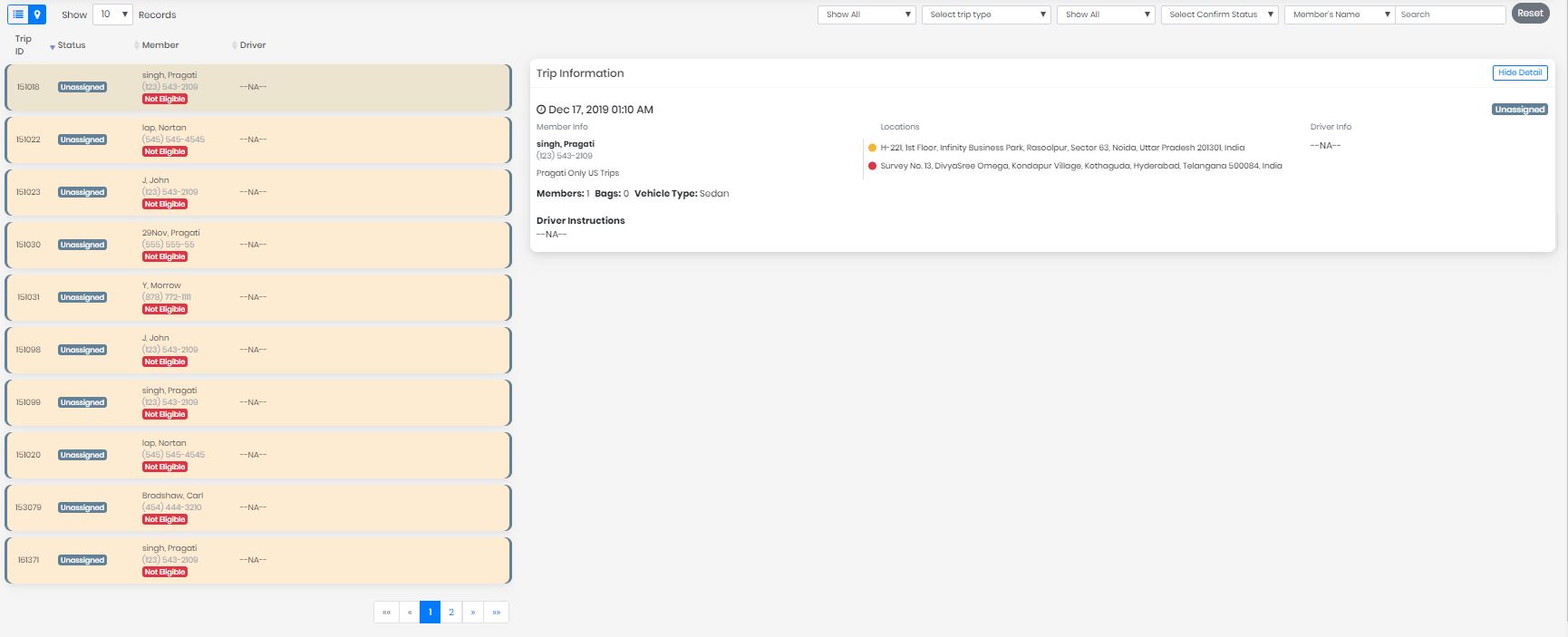
By selecting the trip menu (3 dot icon), you will have the option to see the details of the added trip.
Select Show Detail to see trip information.
Note:
- We will calculate the congestion zone from the Driver pickup point and the destination.
- Once a trip is added in the system that cannot be edited later.
0 Comments