In the trip details section. There are 3 options to create the trips:
- One way Trip
- Round Trip
- Recurring Trip

- For a one way Trip: Select one-way trip and then enter the pickup and drop off addresses, Then you need to enter the Pickup Phone Number and Trip Type. Click on the calendar to choose the date and time of the trip.

For Round Trip: Select Round Trip, enter all the details you would for a one-way trip.
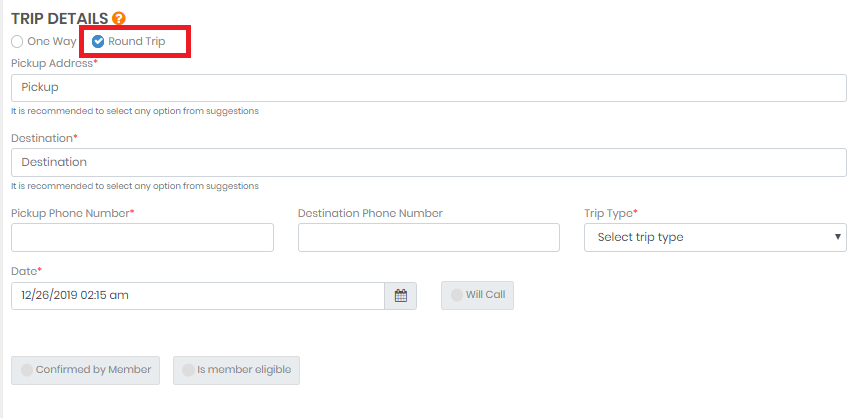
After clicking on the save button, the system will create a round trip with a return leg with reversed pickup and drop off addresses, this second leg will always be a will-call trip.
For Recurring Trips: Clicking on this a popup will be open then you need to enter the mandatory fields to create the recurring trips in the system.
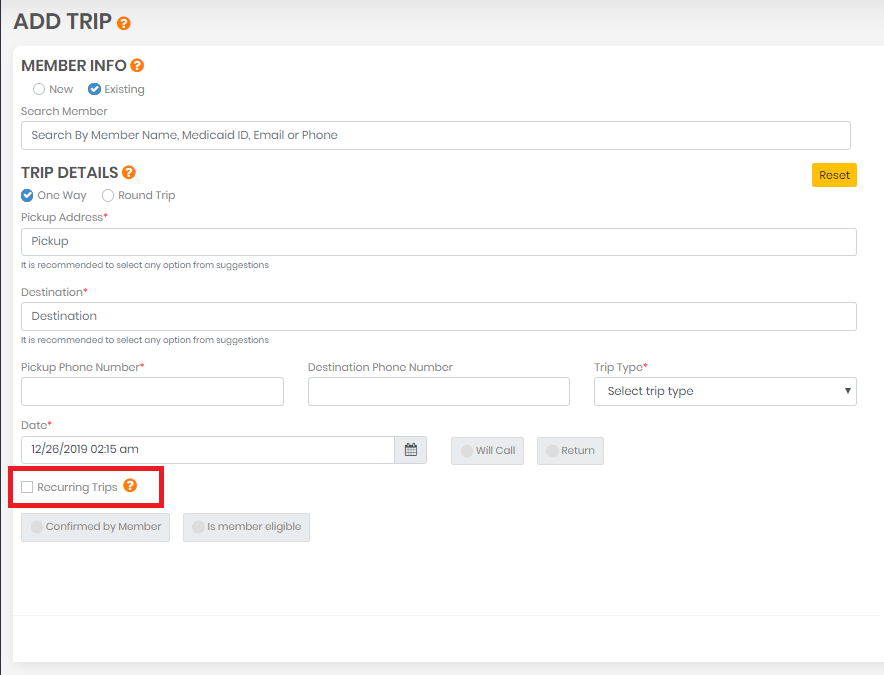
When Recurring Trips are permitted, a user adds multiple trips at once for a single passenger.
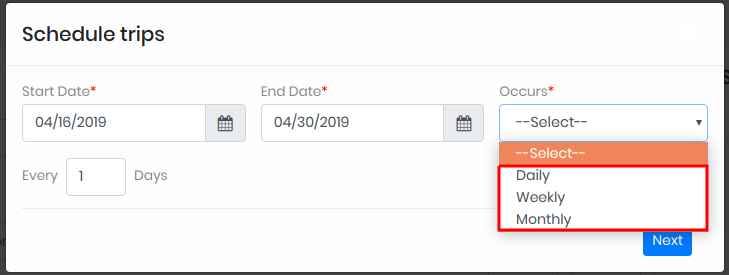
A pop-up box will prompt you to select a Start Date, End Date, and frequency from the drop-down to create multiple trips between the Start and End date.
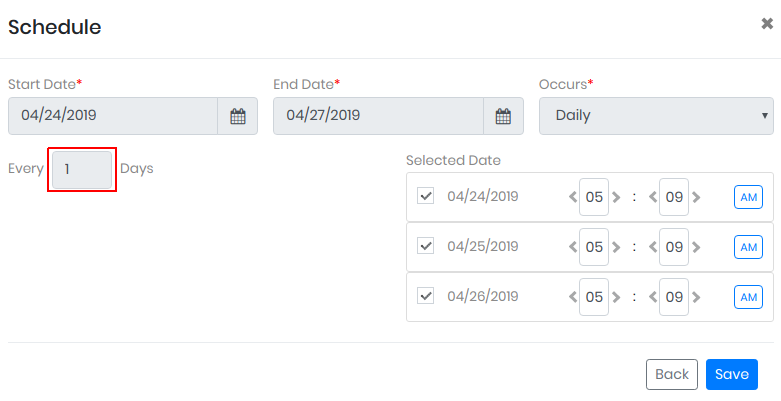
If Daily is selected from the drop-down, tap on next. You can enter the numeric value in the text field as marked in the below screenshot & the trip will be created with an interval of input value in a number of days by clicking on the Next button. For example- If you enter a value 2 then the same trip will be created in every two days interval.
After clicking on the Next button, a selected date section will be displayed to you where you can edit timing for each trip here & you will be able to create the trip for the dates by checking/unchecking the checkbox. After tapping on the save button and entering all details, trips will be created for selected days & time with the same patient/member data.
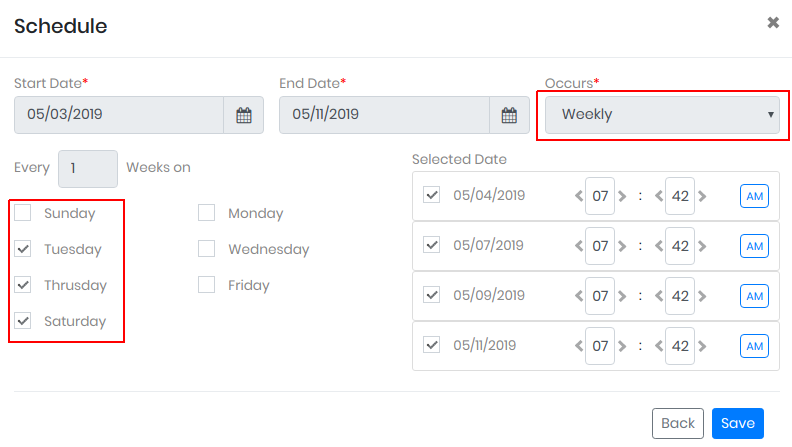
If you select weekly from the drop-down of occurrence, then the trip will be created at a weekly interval. You can enter the numeric value in the text field and trip will be created with an interval of input value in number of weeks. For example- If you enter 2 then the same trip will be created every two weeks. By selecting Daily, you can create the trips for specific days or using the interval, every X number of days a week.
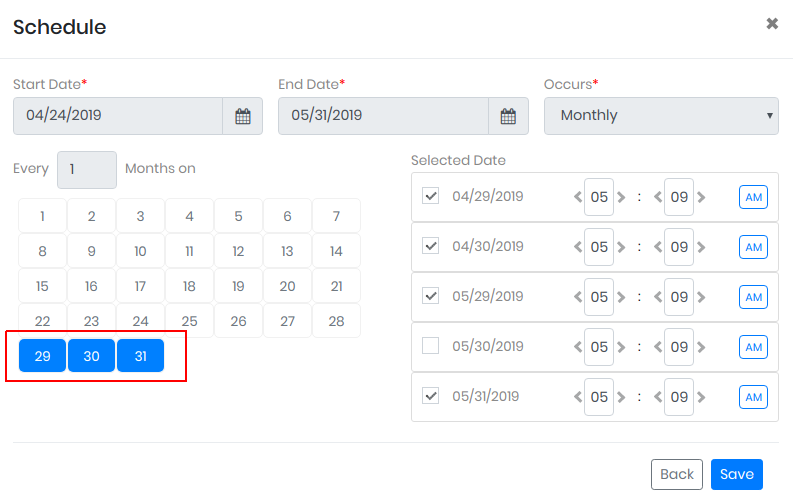
You can also select Monthly from the drop-down. By choosing this option you will be able to see the dates of the month and by choosing the dates of the month, Selected dates of the trips will be displayed on the screen.
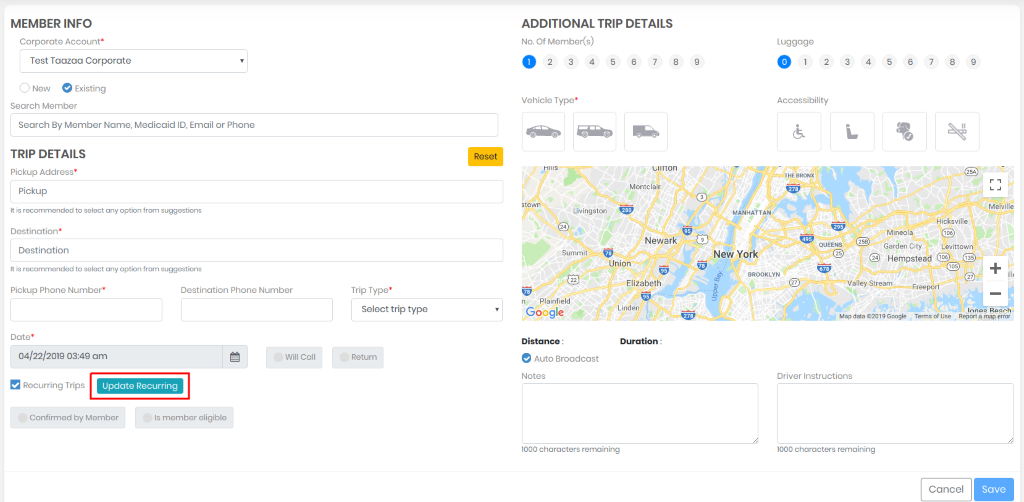
After saving this data, You will be navigated to Add trip screen where you will be able to update the data by clicking on Update Recurring button. This will allow you to edit all the recurring trip data until you click on the Save button.
The recurring trip will be displayed in the trip listing according the date selection.
0 Comments