In order to allow recurring trips, log in as a Base Admin navigate to Configuration under the left hand menu and turn on ALLOW RECURRING TRIPS. Remember to hit save at the bottom of the screen to save any changes.
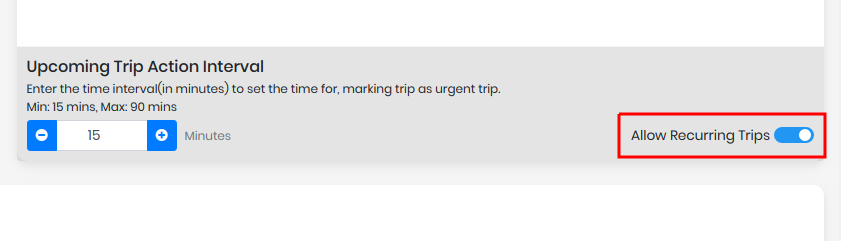
When Recurring Trips are permitted, a dispatcher can add multiple trips at once for a single passenger.
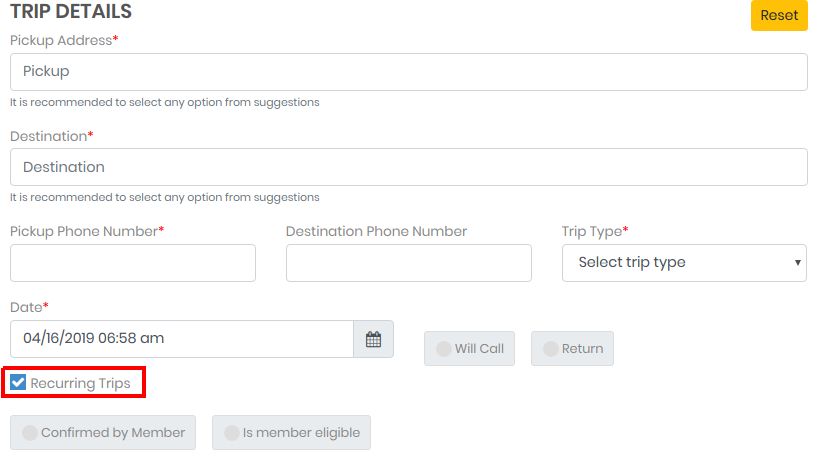
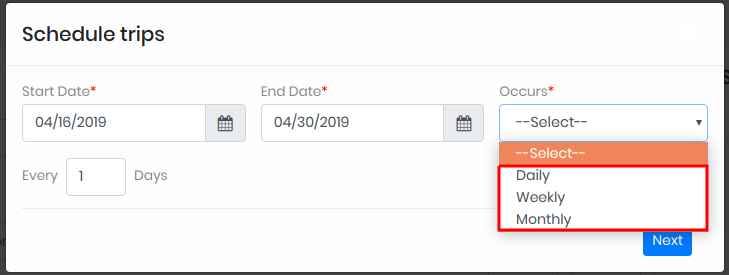
A pop up box will prompt you to select a Start Date, End Date and frequency from the drop-down to create the multiple trips between the Start and End date.
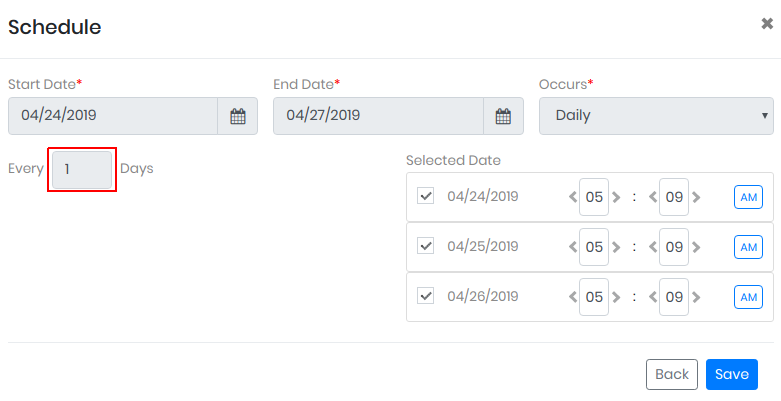
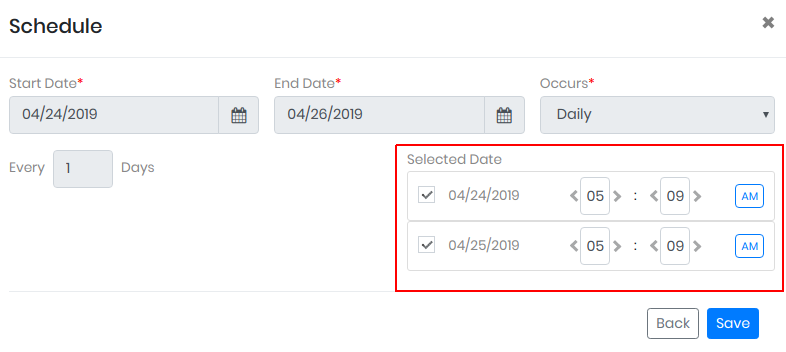
If Daily is selected from the drop down, tap on next. You can enter the numeric value in the text field as marked in the below screenshot & trip will be created with an interval of input value in number of days by clicking on next button. For example- If you enters a value 2 then same trip will be created in every two days interval.
After clicking on next button, a selected date section will be display to the you where you can edit timing for each trip here & you will be able to create the trip for the dates by checking/unchecking the checkbox. After tapping on save button and entering all details, trips will be created for selected days & time with the same patient/member data.
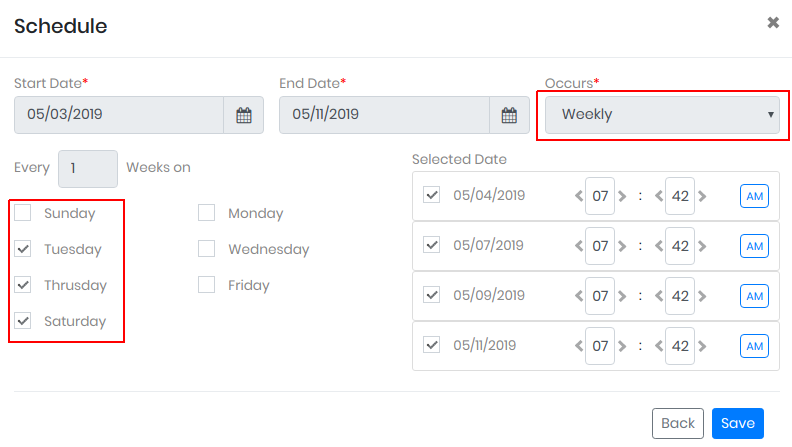
If you select weekly from the drop down of occurrence, then trip will be created at a weekly interval. You can enter the numeric value in the text field and trip will be created with an interval of input value in number of weeks. For example- If you enters 2 then same trip will be created every two weeks. By selecting Daily, you can create the trips for specific days or using the interval, every X number of days a week.
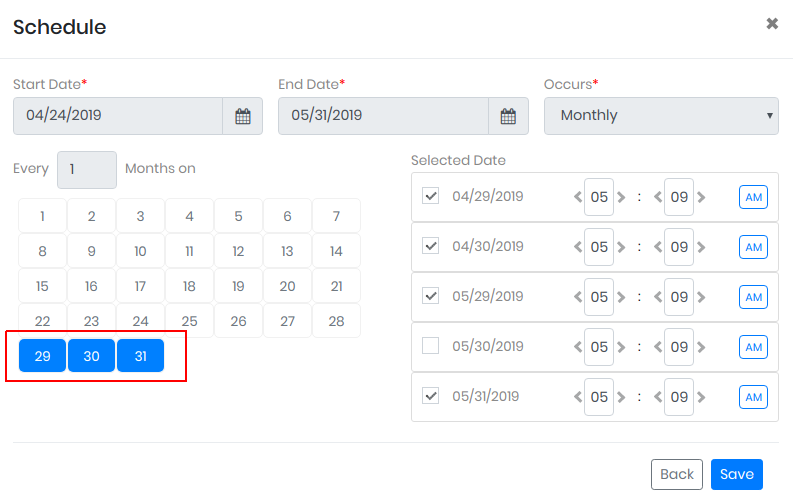
You can also select Monthly from the drop down. By choosing this option you will be able to see the dates of the month and by choosing the dates of the month, Selected dates of the trips will be display on the screen.
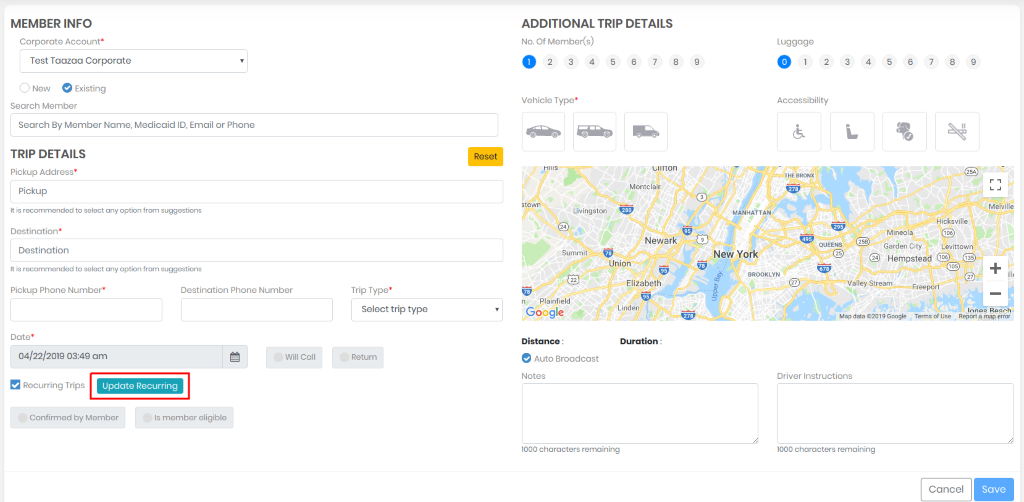
After saving this data, You will be navigated to Add trip screen where you will be able to update the data by clicking on Update Recurring button. This will allow you to edit all the recurring trip data.
You can assign the whole series of trips to a driver at the time of adding the trip and by edit the series, Future trips (max 5 days) will be displayed to the driver on drive app. Driver will get the notification when the trip is assigned, as well as if/when the trip is broadcast (if the trip is marked as “Auto broadcast”). You can also assign single trip from the series to a different driver by clicking on assign. To edit the series of trips or to edit the occurrence of trip you need to click on the action of the trip.
By moving mouse on Edit & cancel, two options will be display to the you, edit – Edit series & Edit occurrence and for Cancel – Cancel series & Cancel occurrence.
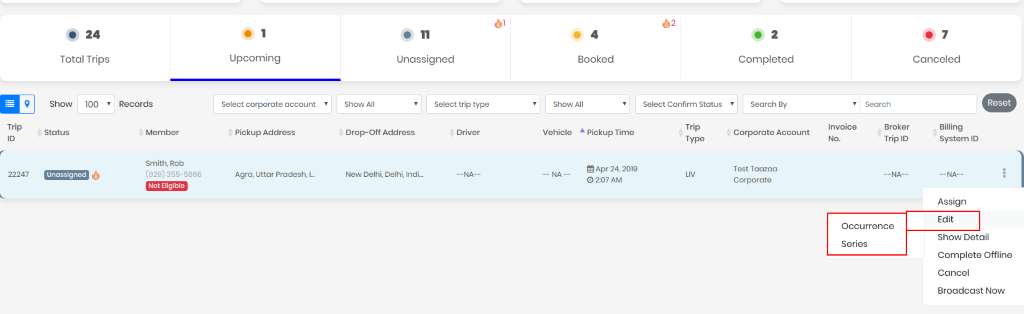
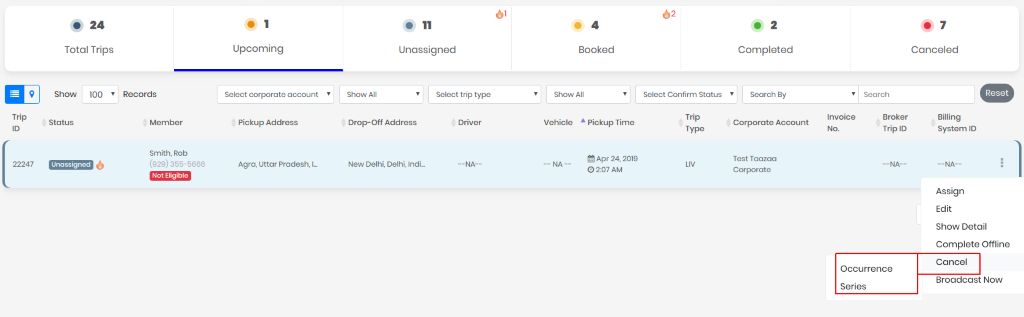
Edit occurrence will allow you to edit that trip and Edit series will allow you to edit the all trips data of that series at a time.
For edit series, an option update recurring will be display to the you and by clicking on this, pop up to edit only timing of the trips will be display on the screen.
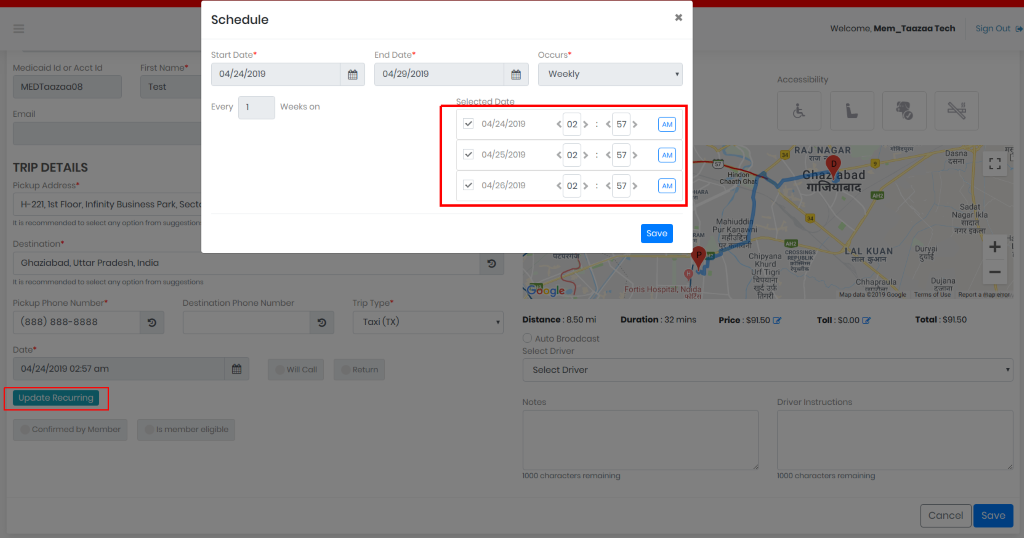
NOTE: You can cancel an occurrence or a series, but you cannot revive a whole series at a time. You can only revive a single trip at a time as there is no option to revive a series, after reviving a recurring trips you will get the options of recurring when edit the trip.
Note: This functionality is only available for manually entered trips.
After adding the recurring trips You can only edit the time and date (between the start & end date) while updating recurring trip.
0 Comments