You need to login the system as a base admin.
Generate Invoice:
Click on the "Generate invoice" from the Invoice section the main menu:

Select the Account you want to generate the invoice and choose the date range from the calendar. Choose those trips, for which you want to generate the Invoice. Clicking on trips will show you the Invoice Summary.

By clicking on download invoice will Download invoice in your system. By clicking on Email Invoice, will send Invoice to the registered email addresss
Payment:
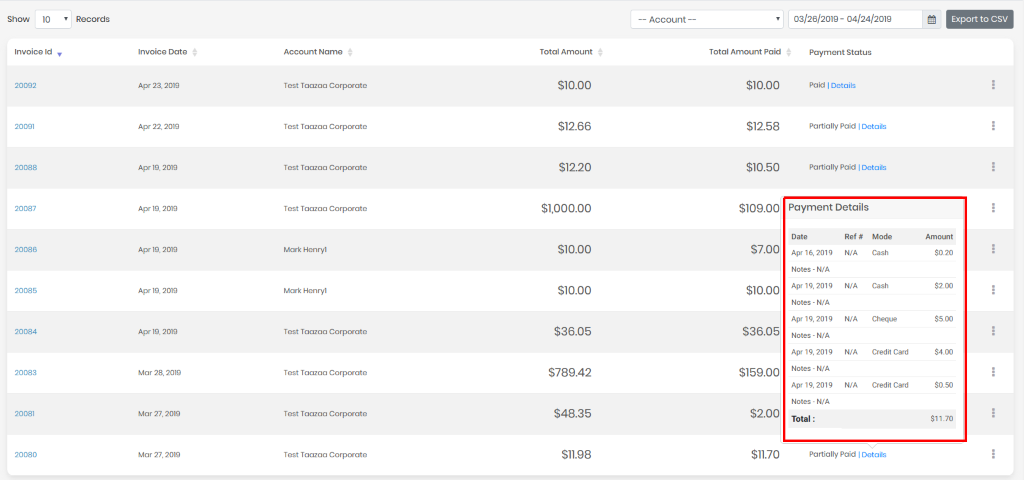
In the listing page of invoice, Column “Payment status” & “Total amount paid " are on the screen with more details of the payment.
Here status of the payment will be displaying on the screen. Status will be showing as Paid, Partially Paid and Unpaid in the list:

By clicking on the actions, “Payment” option will be display to the you:

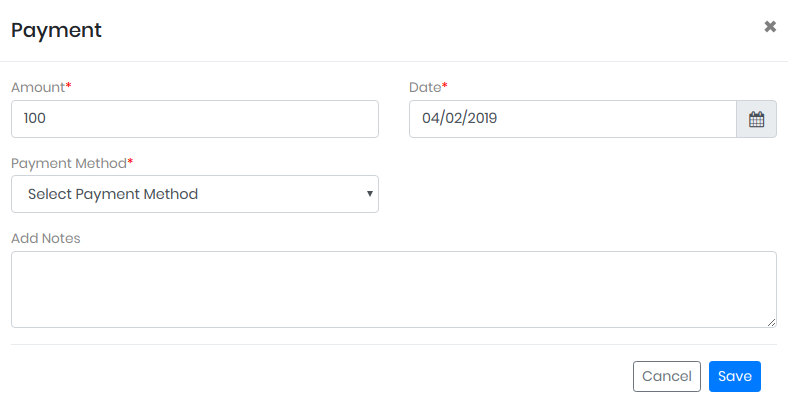
Tapping on payment will open a pop –up where you must enter Amount, Date and Payment method. By default, current date and the rest payable amount will be display to the you while paying the amount:
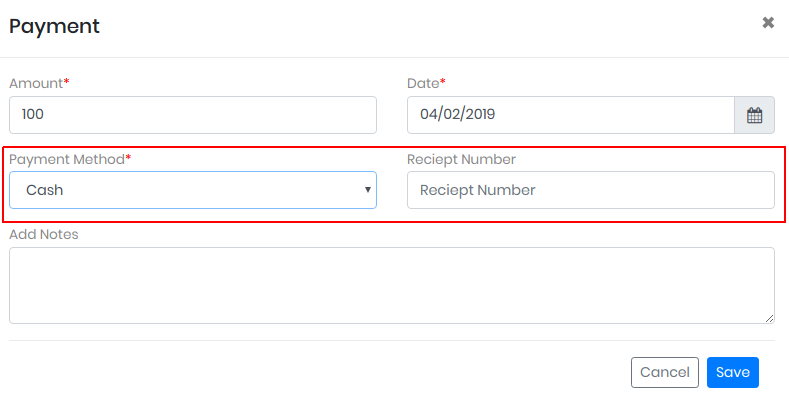
There are 3 types of payment method in the system- Cash, Check and Credit card. Selecting Cash from the drop down, you can enter optional receipt number:
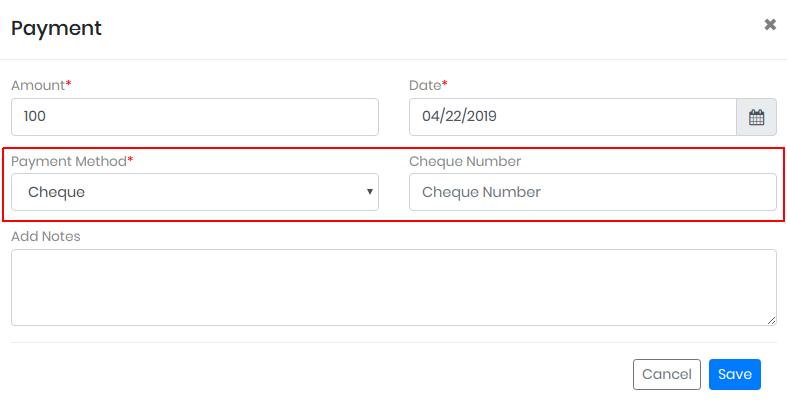
By selecting Cheque, you can enter the reference number for cheque, It's an optional field:
Now if you select credit card as the payment mode, as it’s an optional field, you're allowed to enter the last 4 digits of the credit card.
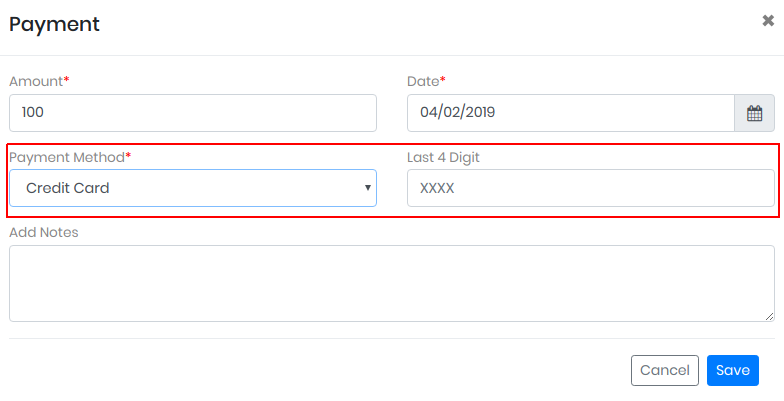
Optional Notes option is available for all the payment modes user can enter the notes.
After clicking on the save button you will be navigate to the listing screen of invoice where a detail option will be display, by clicking on the details button, added paid history sorted by the date of payment will be display to you.


0 Comments