You need to login the system as a dispatcher/base admin/super admin.
Click on the Side left menu and tap on the Trips. After this click on the Add Trip:

A form will be display to you containing 3 sections:
- Member Info where all the details of the member will be filled.
- Trip details where trip locations, timing and trip type will be entered.
- Additional trip section where the required vehicle details needs to select.
You can also enter the Notes & driver instructions.

You can add a trip without assigning to a driver or mark as auto broadcast trip, save button will be enabled in this case. If trip is not marked auto broadcast or not assigned to the driver after saving the trip it will display in the unassigned trip list.
You can edit the status to assign and auto broadcast later by editing the trip.

Adding a Will Call Trip:
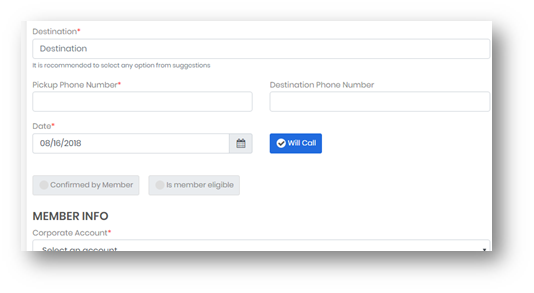
Select the Will Call check box. Refer to screenshot below. Add all the other details as you would for a scheduled trip.
A will call trip will not give you the option to Select the time and you can't assign/auto broadcast the trip.
Send messages to the Passenger: This functionality is for all the users.
Once a driver has reached the pickup location of the passenger/member and updates his status from the app as “arrived at pickup’ a message "Thank you for choosing us. Driver XYZ has arrived at your pickup location".

Message will be sent to the number which is added in the field of “pickup phone number” in the Trip detail section while Edit/Adding the trip
0 Comments