A super admin can only add Manual Drivers. Drivers from transit billing can be added by the the Base and super admin.
To add a driver to the dispatch system, you will need the following information:Profile Name
- Driver Profile Name
- Phone Number
- Email address
- Driver license number and expiration
- Profile Picture
- Login Details (This will be used by driver to log into the driver app)
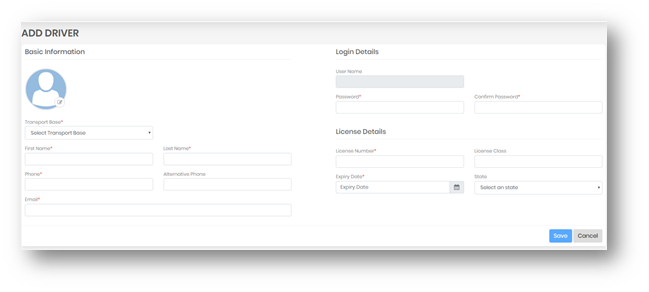
Clicking on save will show this diver in the listing. To make this driver available for base, you need to map the driver.
To map the driver, first login from a base admin the Click on All accounts. Go to the Account from which you want to map your driver. Click on Action:

Click on "Associate Drivers". Select the Drivers you want to map. now click on save will Map drivers to that account:

- Map driver will be display while assigning trips to the driver and adding/edit a trip.
Adding Drivers from Transit Billing:
A base and super admin both can add drivers from transit billing.
Click on Drivers from left menu Then click on the Transit billing.

Click on the action "Add to Transit Partners":

Clicking on this will open a form, Add driver where details added from billing will be display clicking on save will add this driver in Dispatch:

0 Comments